







How to Use the Glitch Effect in PhotoDirector
Add an RGB-split glitch to the background while your subject stays in true color.
Updated Oct. 25, 2026 · 3 min read
In a hurry? Use the Glitch quick guide instead.
PhotoDirector's Glitch effect splits a photo into shifted red, green, and blue layers for a distorted digital look. Use it on a portrait, poster, or social post that needs a retro or futuristic edge. AI can keep the person in their original colors, so the glitch stays on the background and the face remains easy to recognize.

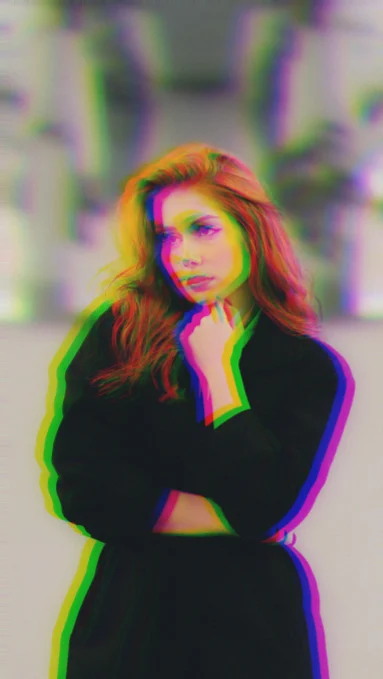

- In PhotoDirector, open Guided & GenAI > Effects > Photo Effects > Glitch.
- Click a template to apply it to your photo.
- Drag H shift, V shift, and Fade to set the color split.
- Click Auto to keep the subject in its original colors.
- Click the side-by-side view button at the bottom left of the canvas to compare Before and After.
- Click Export at the top to save the photo.
Steps to Use the Glitch Effect
Step 1: Open Glitch
From the PhotoDirector launcher, choose Guided & GenAI.

Click Open at the top left of the canvas to bring in your photo. Then click Effects in the rail on the left and choose Glitch under Photo Effects.

Step 2: Pick a Template
Under Step 1 in the panel, click a template to apply it to your photo. The grid holds eight glitch templates, and the first tile, Original, shows the photo without the effect. This example uses the second template in the top row, a red, green, and blue split.

Step 3: Adjust the Shift and Fade
Under Step 2, drag H shift to move the color layers sideways and V shift to move them up or down. Both start at 20. The center of each slider is 0, so drag past it to the left to shift the colors the other way.
Drag Fade to the right to soften the effect. This example uses an H shift of 23, a V shift of 8, and Fade at 0.

If you pick one of the last two templates in the bottom row, Step 2 swaps H shift and V shift for Distance and Angle. Distance sets how far the color layers move from their original position, and Angle sets the direction they move in. They start at 60 and 20, and Fade works as before.

Step 4: Keep Your Subject Clear
Under Step 3, click Auto below Select a brush. PhotoDirector finds the person and brings back their original colors. The glitch stays on the background, and a yellow and magenta edge traces her outline.

To touch up the result by hand, pick a tool to the right of Auto and paint on the photo. The sliders under Brush settings control the stroke.
| Tool or setting | What it does |
|---|---|
| Brush | Paints the effect off an area, for spots Auto missed. |
| Eraser | Paints the effect back, for an area you cleared by mistake. |
| Inverse | Flips the selection, so the glitch sits on the subject and the background stays clean. |
| Size | Sets the brush diameter. Go small for hair and fingers. |
| Feather | Softens the stroke's edge so it blends into the pixels around it. |
| Strength | Sets how strongly a stroke removes the effect. Lower values leave some glitch. |
| Fit to edges | When checked, keeps strokes inside natural edges, such as a hairline or coat. |

Step 5: Compare Before and After
Click the side-by-side view button, the second icon at the bottom left of the canvas. The original and the edited photo appear next to each other, labeled Before and After.

Step 6: Export the Photo
When the glitch looks right, click Export at the top of the window to save the photo. For the file types you can save, see PhotoDirector's supported file formats.

We tested these steps in PhotoDirector 365 version 18.0.10 on Windows.
Don't have PhotoDirector yet? Give a portrait a digital glitch look while keeping the person's original colors.
Download PhotoDirector Free →FAQ About the Glitch Effect
Click Auto under Select a brush, then click Inverse. The selection flips, so the effect applies to the person and the background stays clean.
Yes. Each slider is 0 at its center, so drag H shift or V shift left of center to move the color layers the opposite way.
Click the first tile in the template grid, Original. It shows the photo without the effect.


