







How to Use Skin Smoother in PhotoDirector
Choose exactly which parts of a face get smoothed, and leave the rest sharp.
Updated Oct. 25, 2026 · 3 min read
In a hurry? Use the Skin Smoother quick guide instead.
PhotoDirector's Skin Smoother is a brush that smooths skin only where you paint it. Use it on portraits and close-ups to soften the forehead, cheeks, or chin while the eyes, brows, lips, and hair keep their detail. A Strength slider sets how much smoothing you get.


- In PhotoDirector, open Guided & GenAI > Portrait > People Beautifier > Skin Smoother.
- Set Brush size, Feather, and Strength.
- Paint over the skin you want to smooth, and keep off the eyes, brows, and lips.
- Click the side-by-side view button at the bottom left of the canvas to compare Before and After.
- Click Export at the top to save the photo.
Steps to Use Skin Smoother
Step 1: Open Skin Smoother
From the PhotoDirector launcher, choose Guided & GenAI.

Click Open at the top left of the canvas to bring in the portrait you want to retouch. Then click Portrait in the rail on the left and choose Skin Smoother under People Beautifier.

Step 2: Set Up the Brush
The panel opens with the smoothing brush selected, the first icon under Select a brush. Set the sliders and options below it before you paint. Brush size, Feather, and Strength start at 20, 80, and 50.
| Setting | What it does |
|---|---|
| Smoothing brush (first icon) | Paints the smoothing onto the skin. It's selected when the panel opens. |
| Eraser (second icon) | Removes the smoothing from an area you painted by mistake, such as an eyebrow or the edge of a lip. |
| Brush size | Sets how wide each stroke is. Use a larger size for the forehead and cheeks, and a smaller one close to the eyes and mouth. |
| Feather | Sets how gradually the smoothing fades at the edge of a stroke, so painted skin blends into the skin around it. |
| Strength | Sets how strong the smoothing is. Raise it for a smoother finish, or lower it to keep more of the skin's texture. |
| Fit to edges | Limits the smoothing to areas that look like the skin you paint over. It's unchecked in this example. |
| Fine tune detail | Adds two sliders when you check it. Smoothness sets how much the painted skin is smoothed, and Detail brings back skin texture the smoothing took away. The painted example below leaves it unchecked. |

Step 3: Paint Over the Skin
Drag over the skin you want to smooth, and the painted areas turn smoother on the canvas. This example uses Brush size 46.7, Feather 80, and Strength 84, with strokes over the forehead, both cheeks, the nose, and the chin. The eyes, brows, and lips stay unpainted, so they keep their detail.
If a stroke lands on an eye or a lip, click the eraser, the second icon under Select a brush, and paint over it.

Step 4: Compare Before and After
Click the side-by-side view button, the second icon at the bottom left of the canvas. The original and the smoothed photo appear next to each other, labeled Before and After. Check the skin, then paint more or erase where needed.

To start over, click Clear at the bottom of the panel. It removes every stroke and keeps your brush and slider settings.

Step 5: Export the Photo
When the skin looks right, click Export at the top of the window to save the photo.

The Result
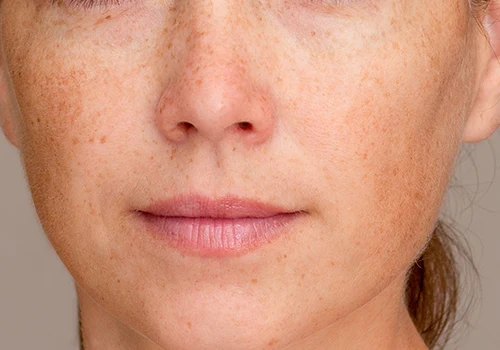
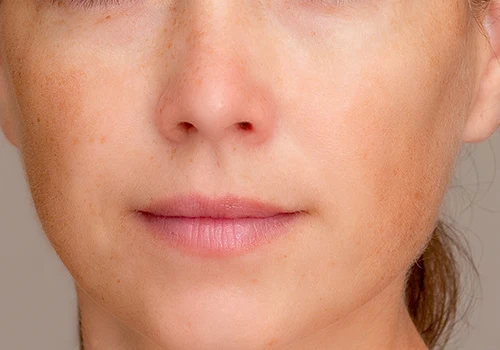
In the example photo, the forehead, nose, and cheeks look smoother and more even, and most of the freckles have faded to faint traces. The eyes, lashes, brows, lips, and hair look the same as in the original.
We tested these steps in PhotoDirector 365 version 18.0.10 on Windows.
Don't have PhotoDirector yet? Smooth the skin in your portraits exactly where you paint, and keep the eyes and lips sharp.
Download PhotoDirector Free →FAQ About Skin Smoother
Leave them out of your strokes, because only the skin you paint is smoothed. If you paint over one by mistake, switch to the eraser, the second icon under Select a brush, and paint over it again.
It softens them. At Strength 84, most of the freckles on the forehead, nose, and cheeks in the example photo faded to faint traces. To keep more of them, lower Strength, or check Fine tune detail and use its Detail slider to bring back some texture.
Use Skin Smoother when you want to choose exactly where the smoothing goes, since only the areas you paint change. To smooth the skin on the whole face with one slider, use Face Smoother in Face Tools, listed above Skin Smoother under People Beautifier.


