







How to Use AI Face Swap in MyEdit
See yourself in a scene you never shot, alone or with friends.
Updated Nov. 1, 2026 · 3 min read
In a hurry? Use the AI Face Swap quick guide instead.
MyEdit's AI Face Swap puts your face into another photo, such as a ready-made scene, a group shot, or a picture of your own. The AI matches the face to the target's lighting and skin tone, and you can try another template anytime. Use it to make a meme, a fun profile picture, or a portrait in a new setting.


- Open AI Face Swap in MyEdit and click Swap Faces Now.
- Select a template under Single Face.
- Add your face under Add Face to Swap and click Swap Face.
- Check the result, then click Download.
Steps to Use AI Face Swap in MyEdit
Step 1: Open AI Face Swap
Go to the AI Face Swap page and click Swap Faces Now, or go to Image Tools > Style > AI Face Swap in the top menu.

Step 2: Pick a Template
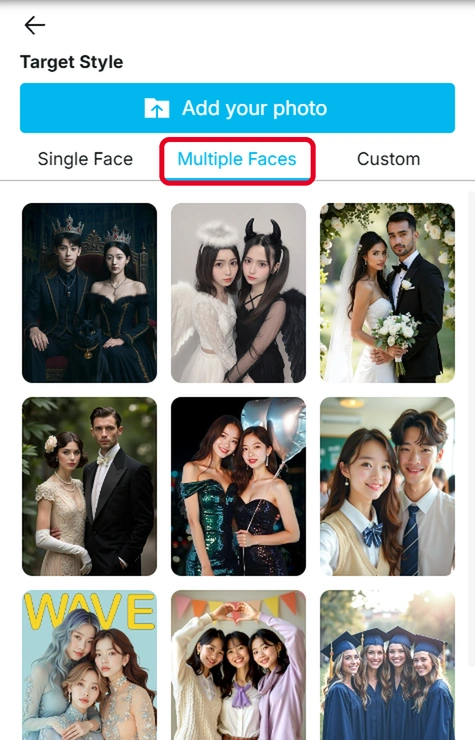
Target Style on the left sorts the target photos into Single Face, Multiple Faces, and Custom.
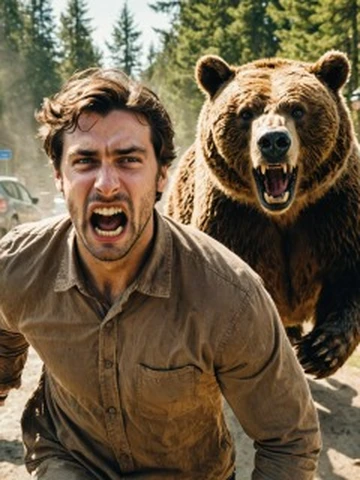
On Single Face, select a template. The preview on the right marks the face that will be replaced. This example uses the man running from a bear.

Multiple Faces offers scenes with two or more people, such as a wedding or a graduation class. You can swap up to 4 faces, and 2 or fewer give the best results.
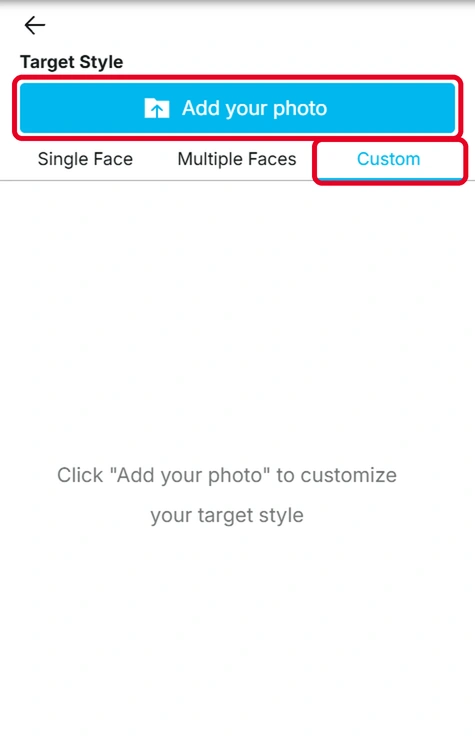
Custom is for a photo of your own. Click Add your photo at the top of Target Style to upload it as the target.
Step 3: Add Your Face and Swap
Click the + under Add Face to Swap and select a clear, well-lit photo of the face. To replace it, click the small x and add another. Then click Swap Face.

Step 4: Check and Download Your Swap
Your face appears in the template on the right. Click the compare icon at the top right of the canvas to see the before and after. To try another template, select it and click Swap Face again. Your face photo stays in place.
Optional: click the Turn into Video icon in the toolbar to animate the picture. When you like the result, click Download at the top right.

We tested these steps on the MyEdit website in November 2026.
Ready to swap a face? Put your face into a meme, a party invite, or a fun profile picture.
Try AI Face Swap →FAQ About AI Face Swap
Up to 4 faces in one photo, though 2 or fewer give the best results. Group templates are on the Multiple Faces tab.
Yes. Click Add your photo at the top of Target Style, upload the picture, then add your face and click Swap Face.
Use a clear, well-lit, high-resolution face photo, and pick a target photo with the same qualities if you upload your own. Then check the edges and lighting with the compare icon before you download.


