






How to Use Social Post Studio and Marketplace Template in Promeo
Start a social video or a store graphic from a finished design.
Updated Nov. 6, 2026 · 3 min read
In a hurry? Use the Social Post Studio quick guide instead.
Promeo's Social Post Studio is a gallery of short animated templates for social posts, each already cut to music. Marketplace Template does the same for online stores, with ready-made designs (some animated) and blank canvases in store sizes. Every piece of text is its own layer, so you change the words and the layout stays put.
- On the Promeo Home page, click Social Post Studio under Marketing or Marketplace Template under Product.
- Pick a blank canvas in the size you need, or a category under Choose a template.
- Click a template to open it in the editor.
- Double-click each piece of text and type your own.
- Click Export & Share, choose Video and a quality for an animated post, or Image for a still graphic, then click Export.
Steps to Use Social Post Studio and Marketplace Template in Promeo
Step 1: Open Social Post Studio or Marketplace Template
On the Promeo Home page, the two tools sit in different groups. For a social video, click Marketing in the left sidebar, then the Social Post Studio card. For an online store graphic, click Product, then the Marketplace Template card, the last one in that group.


| Tool | Blank canvases | Pick it when |
|---|---|---|
| Social Post Studio | Instagram, Facebook, YouTube, TikTok, Twitter, and more | You want a short video post. Every template here is a video. |
| Marketplace Template | Amazon, Yahoo, Mercari, eBay, Shopify, TikTok Shop, Etsy, Lazada, and more, mostly 1:1 | You need a graphic for a store listing or shop page. |
Step 2: Choose a Size or a Category
Both pages open with Start with blank canvas, a row of empty canvases labeled with their aspect ratios. Start from one if you only need the right size for a platform or store.
Or pick a design under Choose a template. The categories run from Seasonal and Social Media to Sale, Food, Gaming, and more. Click one, such as Social Media. In Social Post Studio, the badge on each template gives its length.


Step 3: Pick a Template
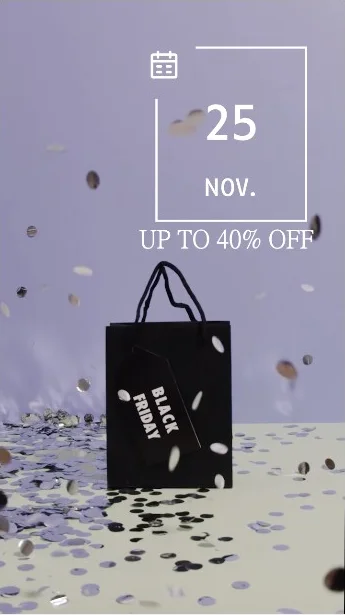
Scroll the gallery to a template you like. Seasonal sets, such as the Black Friday design used here, sit far down the Seasonal list. Click the template, and it opens straight in the editor.

Step 4: Change the Text
The template opens in the editor with Layers on the right. Double-click a piece of text on the canvas and type over it. Or click its entry in Layers, then type. The new words keep the template's font, color, and animation.
To restyle the text, use the options across the top of the window: font, size, color, weight, alignment, and spacing. Drag the text box to move it, or drag a corner handle to resize it. A video template also brings its clip and a Background music track on the timeline.

Some text sits in a group, like the date in this template. Click the group, pick the line you want from the text box at the left of the top toolbar, and retype it.
Click the music on the timeline to change it. The toolbar switches to Replace, Duration, Range, Fade In, Fade Out, Audio Settings, and Delete, and the Music panel opens on the left with more tracks to swap in.

Step 5: Export Your Design
Click Export & Share at the top left. The panel has three tabs: Image, Video, and Share. On the Video tab, type a file name under Name. Check the folder under Folder, or click the folder icon beside it to save somewhere else. Pick a quality from Ultra HD (4K) down to SD 480p, and click Export.

When Producing video complete appears, click Open File Location to find the MP4. The export at the top of this page is a 1080 by 1920 vertical clip, 12 seconds long. The frame and date draw in, the confetti falls around the bag, and the discount line settles underneath.
For a still graphic, click the Image tab instead. Share posts your edited template to DirectorZone so other Promeo users can start from it. It shares the template, not your finished video.
To keep working on the design later, click the save icon beside Help at the top. Or choose File > Save. Your saved designs appear under Projects on the Home page.
We tested these steps in Promeo version 8.24 on Windows.
Don't have Promeo yet? Start a social video or a store graphic from a finished template, and change only the words.
Download Promeo Free →FAQ About Social Post Studio and Marketplace Template
Some are. The Flash Sale poster opens with an 8-second timeline under the canvas, and Animation in the text toolbar sets how each piece of text moves.
Yes. In the editor, click Music in the left panel to open Background Music, then click Replace to use your own track. Duration and Range set how long the music plays and which part you hear. Fade in and Fade out soften the start and the end.
Yes. Click Aspect Ratio at the top right of the editor, beside Layers. Pick a size from the list, and Promeo adjusts the template and its content to fit. Or choose Custom and enter your own width and height. An image export keeps the design's current size, so set it here before you export.


